How to set your computer’s sleep timeout for idle time detection
To check or change your operating system’s sleep settings, follow the steps below.
Note: The sleep timeout should be longer than the interval set in TMetric Desktop’s Detect idle time option.
Windows
1. Open the Start menu and select Settings.
2. In the left menu, select System, then click Power & battery.
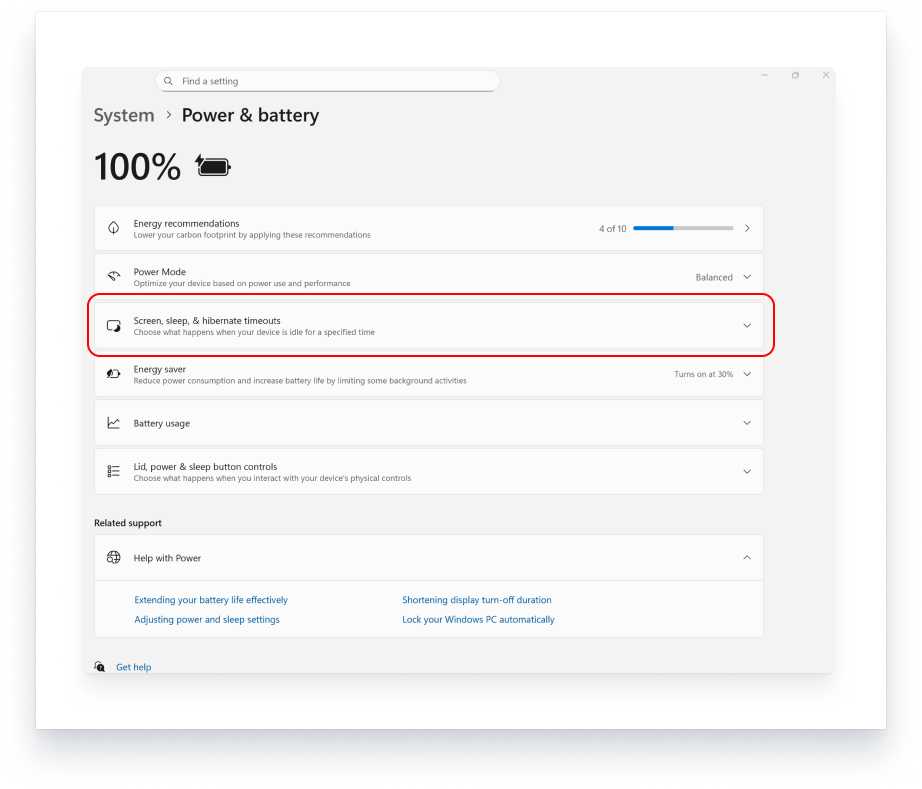
3. Expand Screen, sleep, & hibernate timeouts. In older Windows 11 versions, this section is called Screen and sleep.
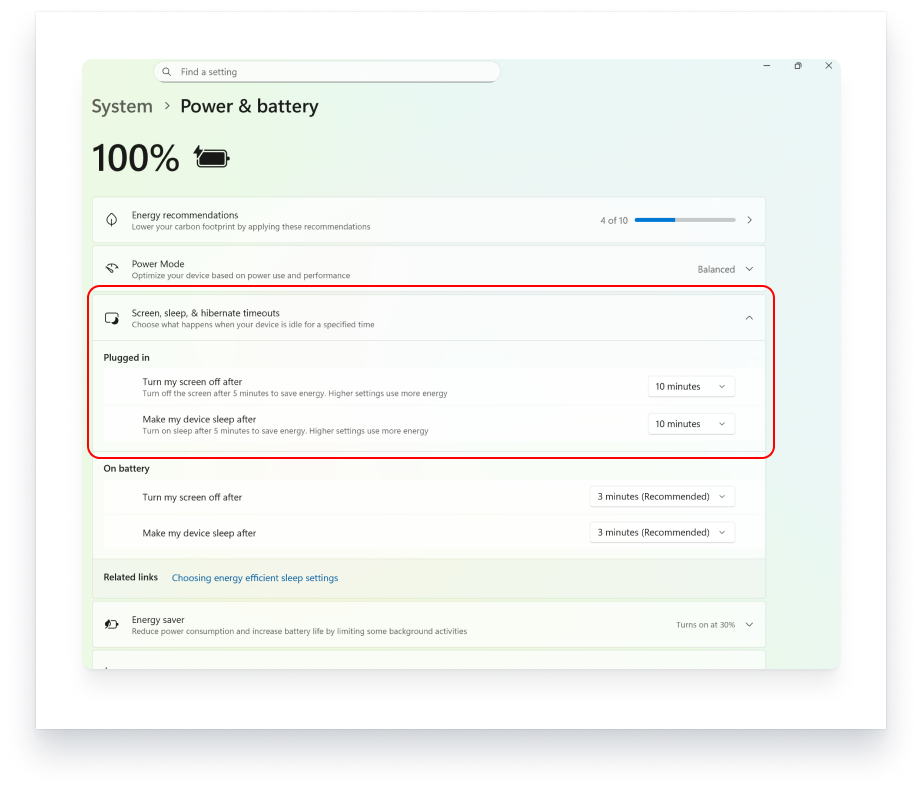
4. Select your preferred time limits under Make my device sleep after for both battery and plugged-in states.
 macOS
1. Open the Apple menu and select System Settings.
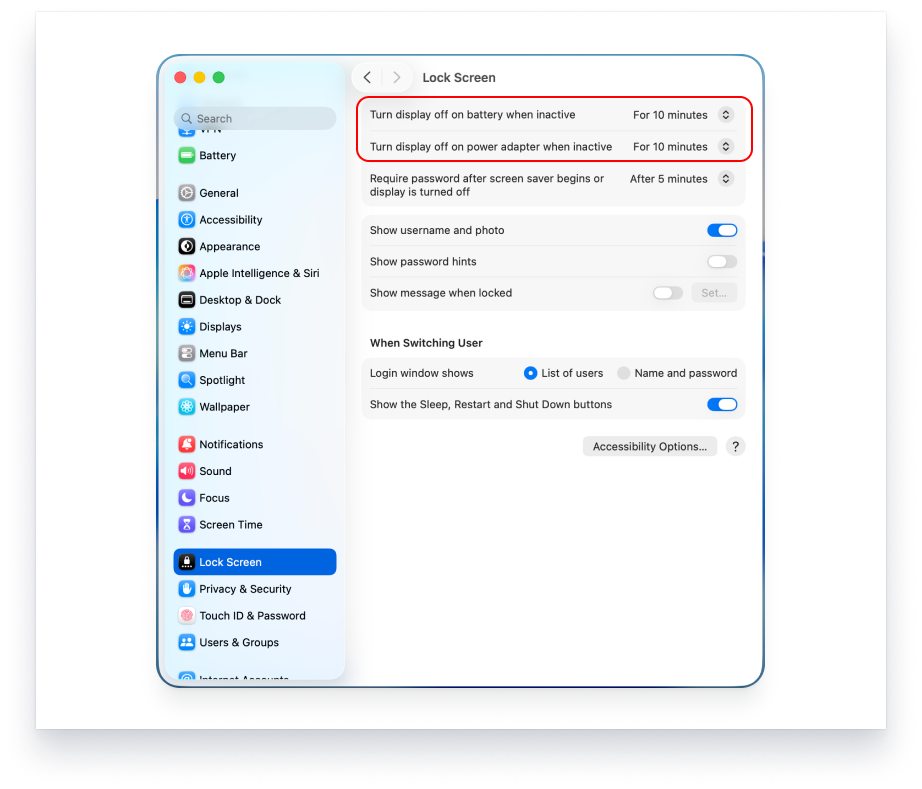
2. In the sidebar, click Lock Screen.
3. Set Turn display off on battery when inactive and Turn display off on power adapter when inactive, as needed, choosing a time longer than the interval set in TMetric Desktop’s Detect idle time option.
4. Make sure Prevent automatic sleeping on power adapter when the display is off is turned off. On a MacBook, it’s under Battery > Options. On a desktop Mac, it’s under Energy.
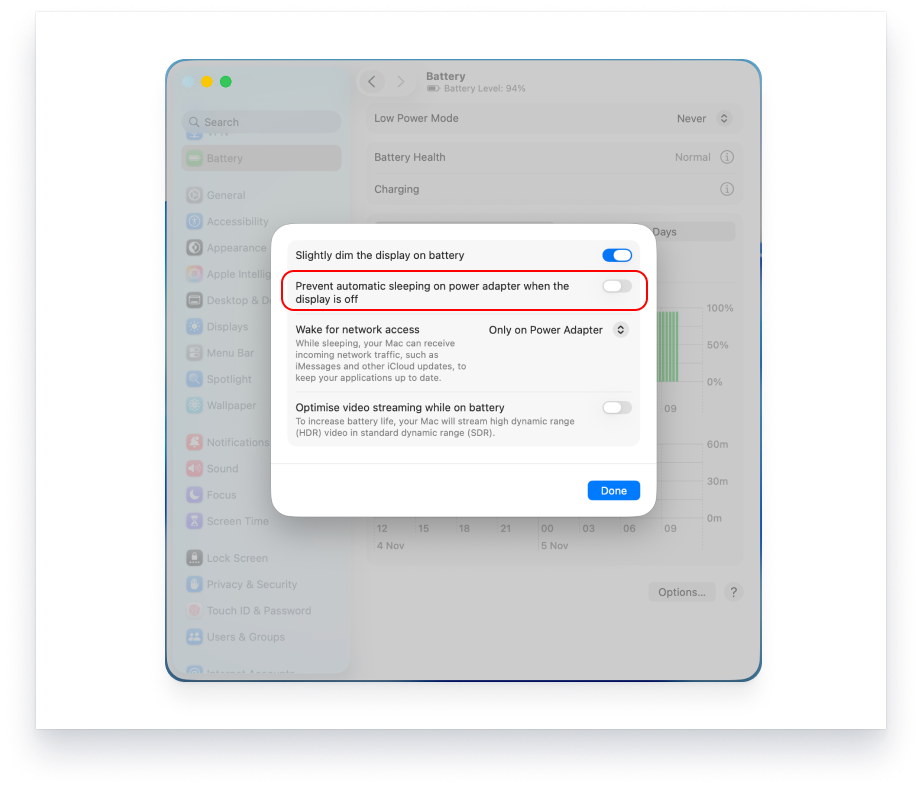
Note: Turning off the display doesn’t necessarily put your Mac to sleep. The available sleep settings vary by model and macOS version.
Linux (Ubuntu/GNOME)
The steps depend on your Linux distribution and desktop environment.
1. Open Settings and select Power.
 2. Under Power Saving Options, click Automatic Suspend.
3. Set the desired inactivity timeout and configure whether it applies when running on battery or plugged in.
Note: If you use a desktop environment other than GNOME, look for Power Management or Suspend settings.
See Also
Didn’t find what you were looking for?
If you didn't find what you were looking for, you can make a support request or email us to [email protected]. We'll be glad to help you personally.