TMetric MCP Server: An MCP Connector for Your Time Data

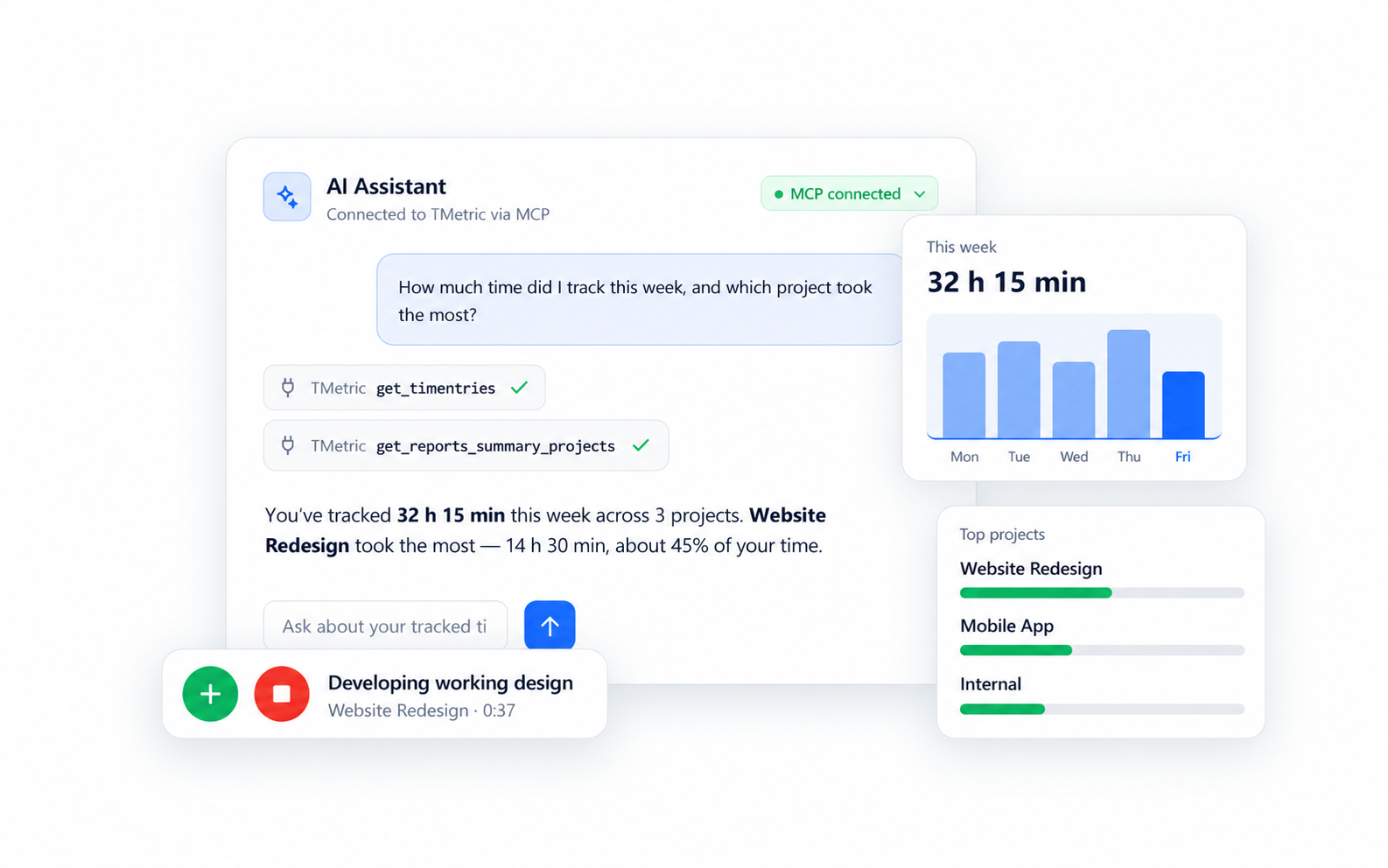
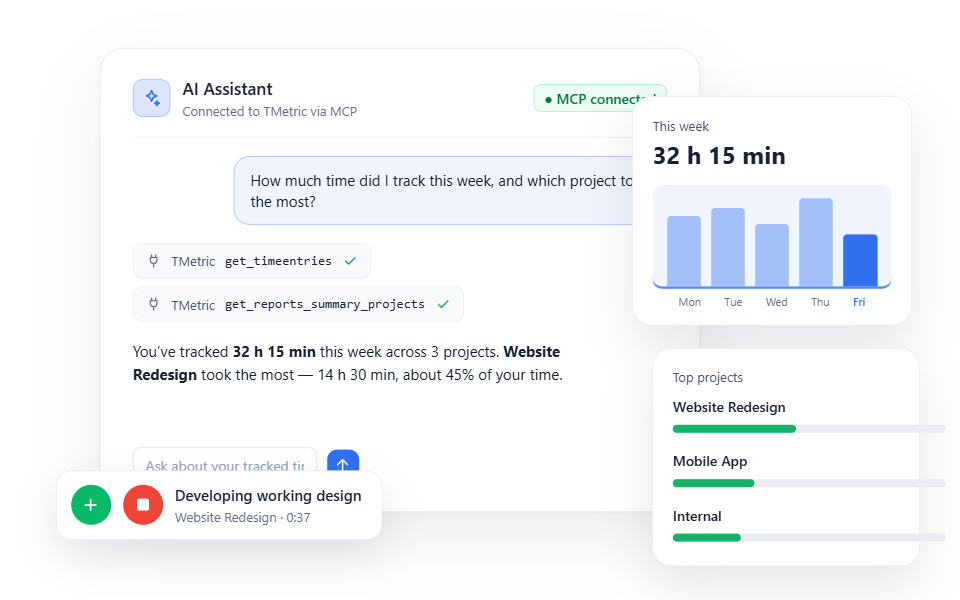
Add the TMetric MCP connector to Claude, ChatGPT, or Gemini, and ask your assistant about the hours your team already tracked.

Fully functional 14-day trial No credit card needed
TMetric MCP Server: An MCP Connector for Your Time Data

Add the TMetric MCP Connector

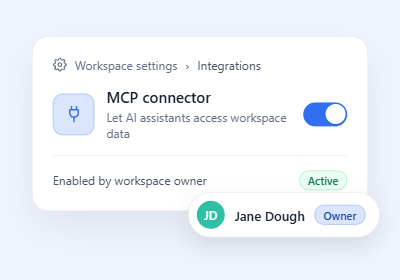
  • Enable MCP in TMetric

    Enable MCP in TMetric

    The workspace owner enables the MCP connector in TMetric settings.

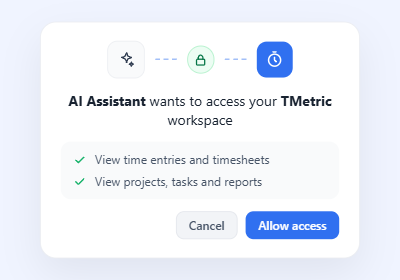
  • Add the Connector to Your AI

    Add the Connector to Your AI

    Connect TMetric to your AI assistant via OAuth. Use the Claude MCP connector, ChatGPT MCP connector, Cursor MCP connector, or Gemini MCP connector depending on the AI tool you use.

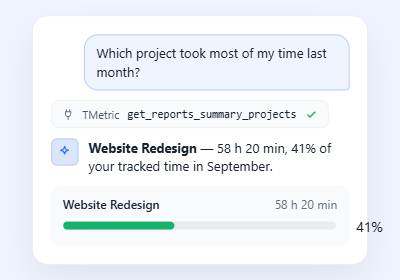
  • Ask Your First Question

    Ask Your First Question

    Connect your TMetric workspace and ask your AI assistant a question about your tracked time, projects, or other available work data.

What is an MCP Connector?

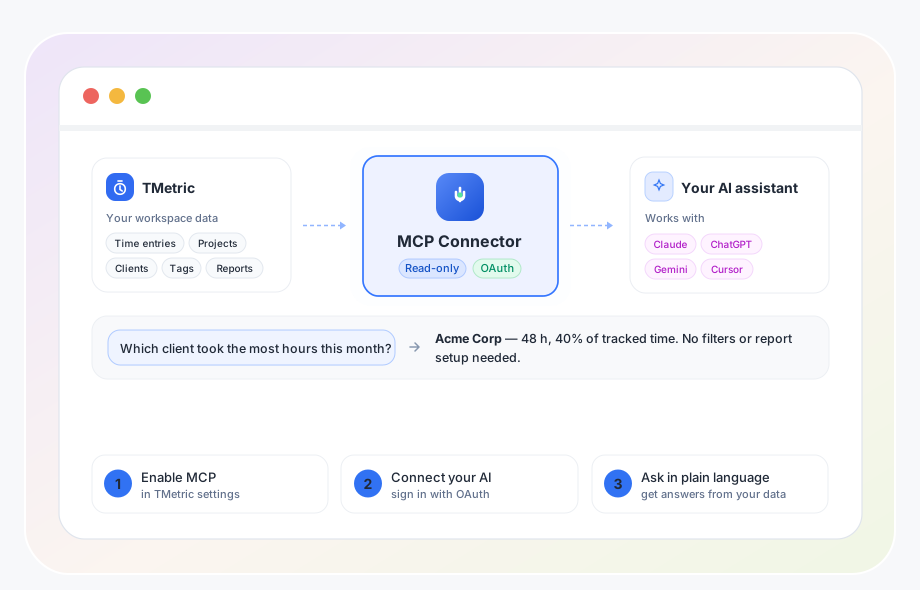
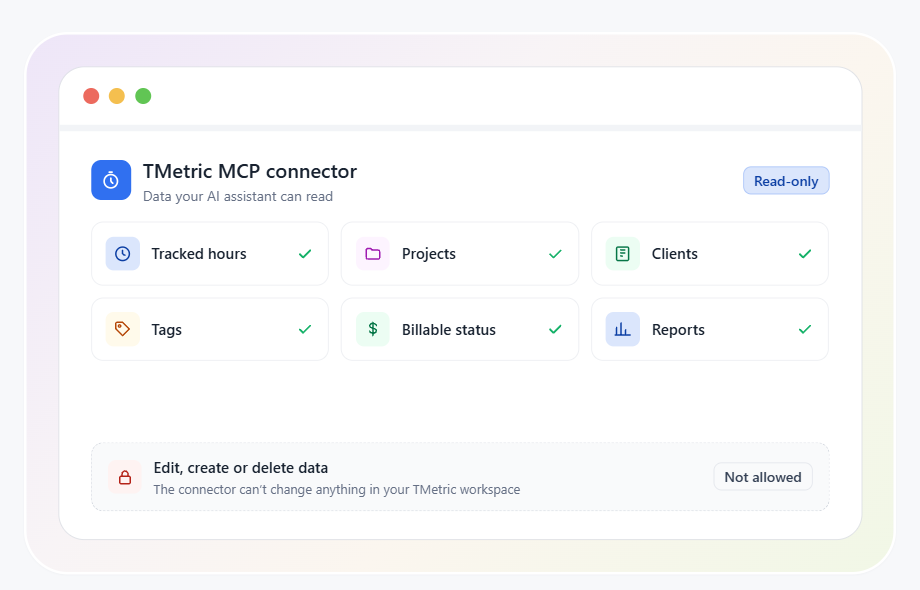
It's a ready-made connection that lets an AI assistant access data and functionality from another application through the Model Context Protocol (MCP). The MCP connector meaning is essentially a bridge between an AI tool and an external service, using a standardized way to make information available to the assistant. In TMetric, an MCP connector can give a connected AI assistant read-only access to work data such as tracked hours, projects, clients, tags, and reports. This MCP connector definition focuses on what the connection does: it makes relevant application data available to an AI without requiring a custom integration for every assistant.
What is an MCP Connector?

What your AI can read from TMetric

The TMetric MCP connector gives your AI assistant read-only access to selected work data from your TMetric workspace. Depending on the available data, your assistant can read tracked hours, projects, clients, tags, billable and non-billable time, and reports. This access is read-only: the connector does not let the AI change your TMetric data. You can use it to ask questions about your tracked time, project activity, clients, or reports and get answers based on your TMetric data.

What your AI can read from TMetric

Ask your AI about your reports

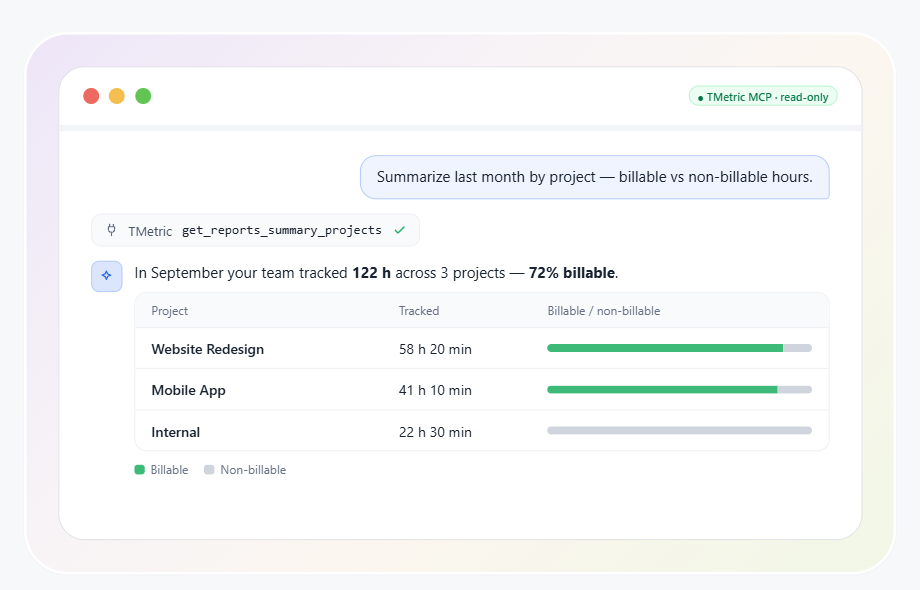
Turn your TMetric data into answers with natural-language questions. Your AI assistant can analyze tracked time, reports, projects, team workload, clients, and billing data, giving you a more flexible way to work with your time reporting software without requiring you to build custom reports or filter tables manually. All prompts are read-only. Your AI can analyze and summarize the data available through the TMetric MCP connector, but it cannot start timers, edit time entries, create projects, or otherwise change your TMetric data.

Ask your AI about your reports

Billing & invoicing insights

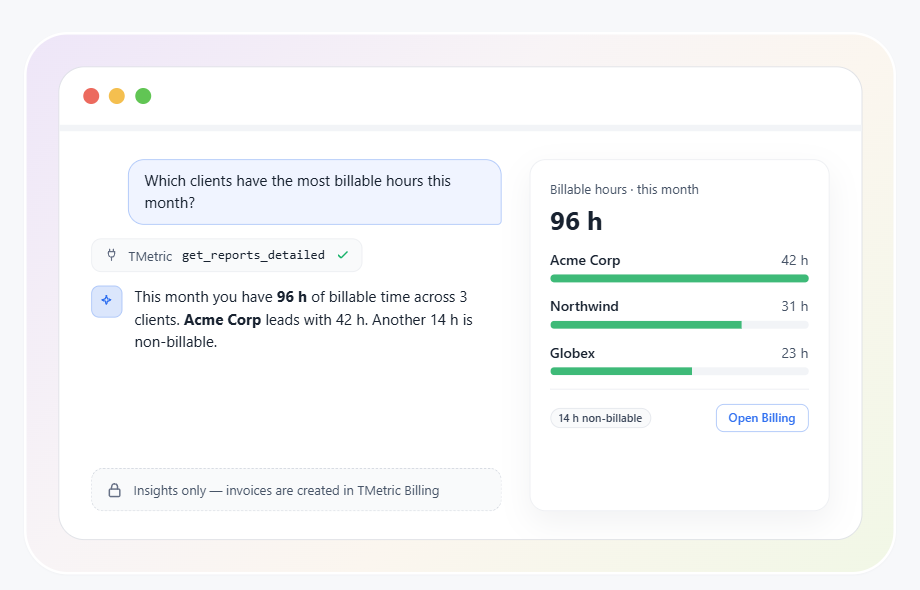
Use your AI assistant to review billable and non-billable hours across clients and projects. The TMetric MCP connector can help you summarize time data, identify billable hours, and prepare the information you need for client invoicing. When you’re ready to invoice, TMetric’s Billing feature handles the actual billing process. MCP provides insights from your time data but does not replace invoicing. Learn more about managing billable hours.

Billing & invoicing insights

Who Uses the TMetric MCP Connector?

Time Tracking for Developers

Developers can use TMetric with Asana to track time spent on tasks, bug fixes, sprint work, and client requests without leaving the task workflow.

  • Improve sprint planning and task estimation accuracy
  • Ensure precise billing for engineering and client work
  • Support individual developers and development teams
Use this solution
  • Task tracking and accurate time estimates
  • Activity insights and development focus patterns
  • Project planning and budget tracking
  • Share time logs for billing and client reporting
Linda Förster

Linda Förster

Project manager at Medudy

5 out of 5 stars rating

TMetric helps provide us with valuable insights into our work patterns, which has resulted in increased efficiency and productivity.

Time Tracking for Marketing Agencies

Marketing agencies can use TMetric with Asana to track campaign work, meetings, client tasks, and billable hours in one reporting workflow.

  • Track all marketing activities and meetings
  • Manage client billing
  • Gain insights into your processes by reporting data
Use this solution
  • Use of time tracking data to analyze where time goes
  • Budget management
  • Project planning, task estimation, and deadlines
  • Detailed reporting for clients
Brian Reilly

Brian Reilly

Financial Marketer at BankBound

5 out of 5 stars rating

We’ve found TMetric to be both user-friendly and robust. It was easy to set up which allowed us to begin leveraging the tool immediately.

Time Tracking for Designers

Designers can use TMetric with Asana to track creative tasks, separate billable work from internal revisions, and show clients where project time goes.

  • Track billable hours to manage income
  • Increase client satisfaction
  • Protect project profitability
Use this solution
  • Time tracking on client’s project
  • Reporting
  • Inviting a client representative to TMetric workspace to see reports
  • By-the-hour payments
Swen Roethlisberger

Swen Roethlisberger

CEO & Founder of Floowedit

5 out of 5 stars rating

TMetric is faster, more convenient, and cheaper, the support is responsive and they fixed some bugs quickly.

Time Tracking for Accountants

Accountants can use TMetric with Asana to track client work, apply billing rates, and prepare invoice-ready time records.

  • Track billable and non-billable client hours
  • Apply hourly rates by project or service type
  • Prepare accurate records for invoicing and reporting
Use this solution
  • Client time tracking and billing records
  • Time reports by project, client, and employee
  • Budget tracking and workload visibility
  • Export data for invoicing and accounting workflows
Julie Lunn

Julie Lunn

Small Business Bookkeeper

5 out of 5 stars rating

TMetric's Chrome add-on makes time tracking easier and streamlines accounting procedures by integrating with QuickBooks Online with ease.

Time Tracking for Consultants

Consultants can use TMetric with Asana to track billable project work, manage budgets, and prepare client invoices from approved time entries.

  • Track billable consulting hours from Asana tasks
  • Monitor project budgets and time allocation
  • Prepare accurate reports and client invoices
Use this solution
  • Time tracking by task, client, and project
  • Budget monitoring and workload visibility
  • Billable hours and invoice preparation
  • Export reports for client approval and billing
Galeno Chua

Galeno Chua

Founder, Strategist and Coach at The Idea Founding Principal

5 out of 5 stars rating

It’s been pivotal for helping us gather better decision-making information, grow our topline and reduce our bottomline.

How to Use the TMetric MCP Connector

  • Step 1

    Open MCP settings in your TMetric workspace

    Open the MCP settings in your TMetric workspace. The exact navigation path may vary depending on the current TMetric interface.

  • Step 2

    Copy the connector link and add it in your AI client

    Copy the TMetric MCP connector link and add it to your supported AI client. Follow the client’s connection flow to continue.

  • Step 3

    Authorize access

    Sign in if required and authorize the AI assistant to access the available TMetric data. The connection provides read-only access to your workspace data.

  • Step 4

    Ask a question and review the answer against your Reports tab

    Ask your AI assistant a question about your tracked time, projects, clients, or reports. For an initial check, compare the answer with the corresponding information in your TMetric Reports tab.

Frequently Asked Questions

What is an MCP connector?

An MCP connector is a ready-made connection that lets an AI assistant access data from another service through the Model Context Protocol. For example, the TMetric MCP connector can give your AI read-only access to tracked hours, projects, clients, and reports.

What is the difference between an MCP connector and an API?

An MCP connector is a ready-made connection built around the MCP standard, while an API typically requires separate development to connect an AI assistant to each service. This is the key difference when comparing an MCP connector vs API: the connector provides a standardized way for compatible AI tools to access available data.

Can my AI change or delete my TMetric data?

No. The TMetric MCP connector provides read-only access, so your AI can read and analyze available data but cannot create, edit, or delete time entries, projects, or reports.

Who can set up the TMetric MCP connector?

The TMetric MCP connector can be set up by the workspace owner. The owner authorizes the connection and controls access to the workspace data.

Which AI assistants support the TMetric MCP connector?

The TMetric MCP connector supports compatible AI assistants available at the time of publication, including Claude, ChatGPT, Gemini, and Cursor. You can connect TMetric through a Claude MCP connector, ChatGPT MCP connector, or the corresponding connector for another supported AI client.

Do I need to be a developer to set up an MCP connector?

No. You don't need coding skills or developer experience to set up an MCP connector. The connection is configured through the AI assistant's interface and authorized with OAuth.

Connect TMetric to Your AI

Get more from your time data with the TMetric MCP connector. Connect your AI assistant and ask questions about tracked hours, projects, clients, and reports in natural language.

Bottom cta section image