Daily Activity Report
The Daily Report provides a summary of all user activity. Here you will find detailed information about your activity levels, apps and sites you use and visit at work, as well as screenshots of each monitor taken randomly every 10 minutes.
You can see both your activity and other users' one if you are a team lead, workspace owner and admin. A workspace owner and admin have permission to delete other team members activity: either separate activities or all user activity on the Members page.
To view and manage all of your activity
- Go to Reports and click Daily Activity.
- Scroll all the activities using a scrollbar on the timeline or clicking the Next and Previous arrows.
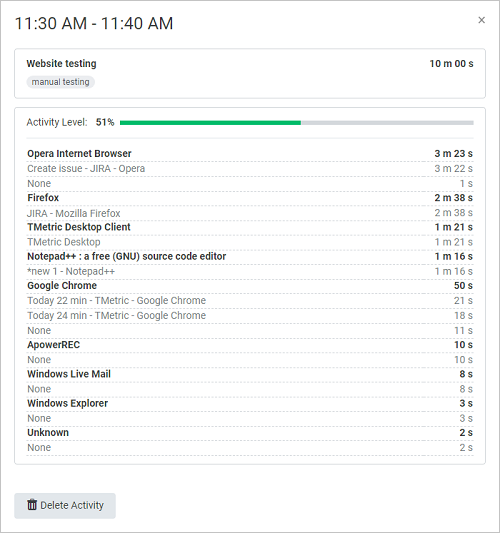
- To get details about each 10-minute activity segment, click the View Detailed Activity icon in the top panel.
- Click a screenshot thumbnail to see it in full size.
- If you want to see another user activity, click the Select User drop-down arrow and select its name in the list.
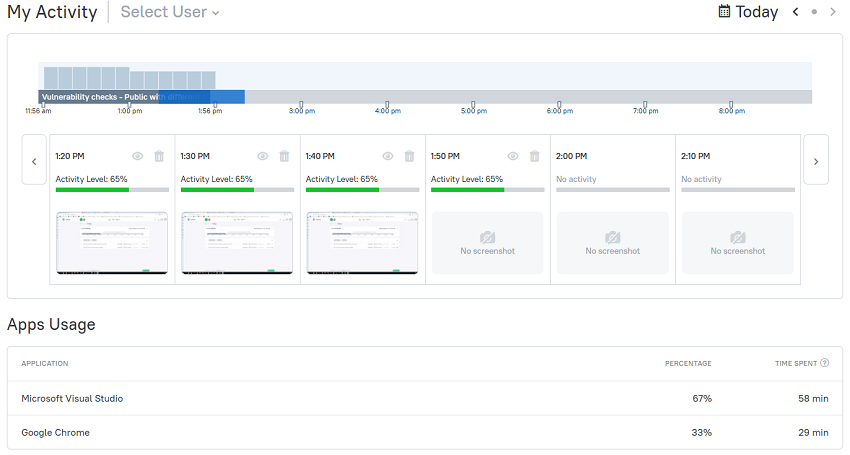
If you want to delete any segment of your activity, you can do it in two ways:
- To delete an activity on the My Activity page, click the Recycle Bin icon in the top panel.
- To delete an activity in the Activity View dialog, click the Delete Activity button and confirm the deletion.
See Also
Didn’t find what you were looking for?
If you didn't find what you were looking for, you can make a support request or email us to [email protected]. We'll be glad to help you personally.