Recurring Invoices
Using recurring invoices streamlines the billing process, reduces the need to manually create them each time, and eliminates errors.
A recurring invoice is a bill that’s automatically created and sent to a customer on a regular schedule set by you. A list of all recurring invoices is displayed on the Recurring tab of the Invoices page.
Table of Contents
How to Create a Recurring Invoice
You can easily set up recurring invoices to be generated automatically every month or year on a date you choose and then send them to your client.
To create a recurring invoice
1. Go to the Invoices page and open the Recurring tab.
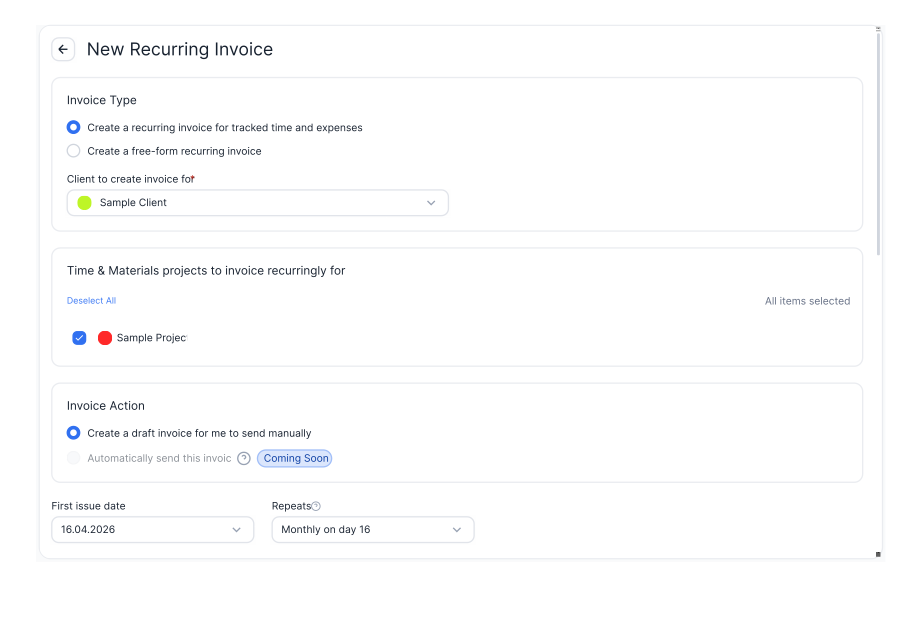
2. Click + Recurring Invoice to create a new recurring invoice.
3. Select the invoice type from the two options:
- Create a recurring invoice for tracked time and expenses (by default)
- Create a free-form recurring invoice
4. Select a client, then choose the project to invoice for.
5. In the Invoice Action section, Create a draft invoice for me to send manually is selected by default.
6. Set the First issue date by selecting it from the drop-down calendar.
7. In the Repeats field, select how often the invoice is automatically created and sent:
- Yearly on - the date is determined by the First issue date selected in the drop-down calendar.
- Monthly on day - the day is determined by the First issue date selected in the drop-down calendar and is set by default.
- Custom - allows you to set a custom recurring interval.
8. In the Duration drop-down list, select how long the invoice should keep repeating:
- Keep issuing invoices until deleted (by default)
- Limit invoice generations - set the number of times a recurring invoice will be created.
9. In the Time & Expenses Settings section, select whether to include time entries or expenses in the invoice and how to group them. Select the Include expense report option to attach a PDF report to the invoice.
Note: This section appears when the invoice type Create a recurring invoice for tracked time and expenses is selected and at least one project is chosen.
10. In the Invoice Settings section, configure the main invoice details as needed, then click Save.
Recurring Invoice List
The created invoice appears in the invoice list on the Recurring tab. Invoices are displayed in a table with the following columns:
- Client - the name of the client the invoice is billed to. Below the client name, the number of projects added to the invoice is displayed.
- Type - the type of recurring invoice selected during creation: Free Form, Time, Expenses, Time & Expenses.
- Invoice Subject - displays what the invoice is about.
- Recurrence - the recurrence period selected when creating a recurring invoice: Yearly, Monthly, or every specified interval.
- Next Invoice - the date of the next invoice generation.
- Initial Amount - the total of all line items in the recurring invoice, rounded to two decimal places.
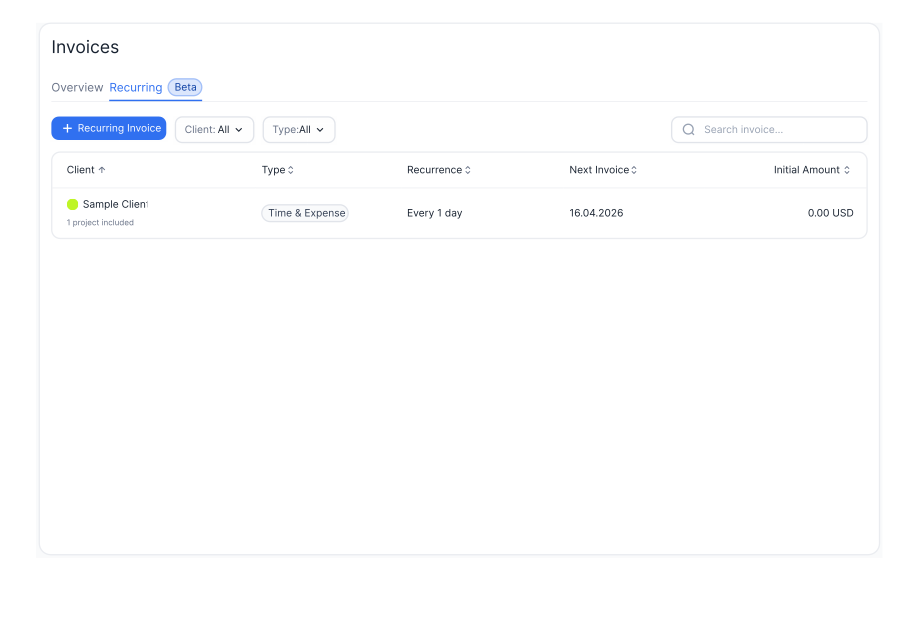
If you need to find a recurring invoice quickly, you can use the Search option on the Recurring tab of the Invoices page.
You can also filter invoices by Client and Type. Click the required filter next to the + Recurring Invoice button and select the option you need.
- Client filter: All or a specific client from the list.
- Type filter:
- Time – when only time is selected during invoice creation
- Expenses – when only expenses are selected during invoice creation
- Free Form – when neither time nor expenses is selected during invoice creation
- Time & Expenses – when both time and expenses are selected during invoice creation
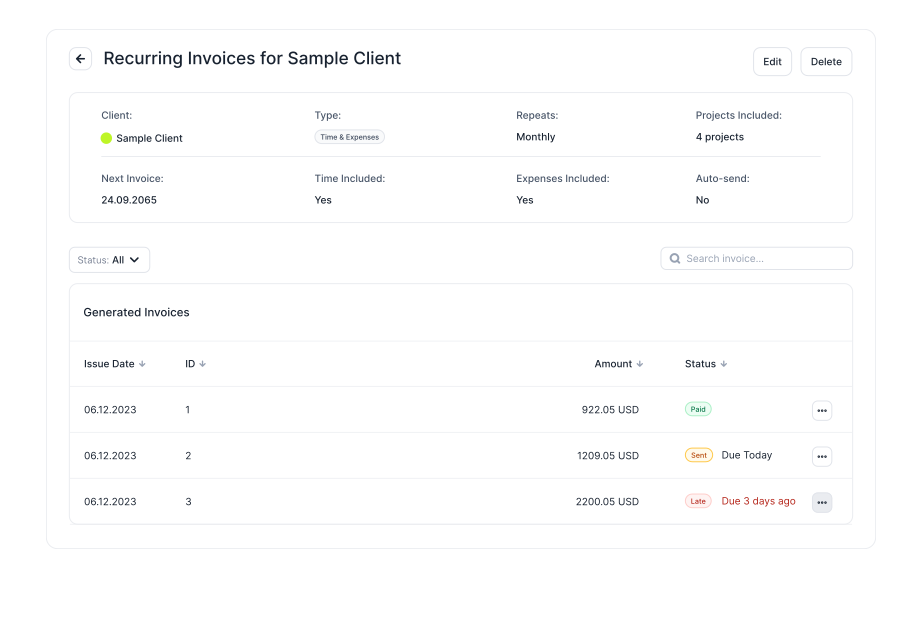
When you open each recurring invoice, you will see the following information:
- The main invoice fields: Client, Type, Repeats, Projects Included, Next Invoice, Time Included, Expenses Included, Auto-send (Not yet - coming soon).
- The Status filter: All, Draft, Sent, Paid.
- The Generated Invoices section, where you can view the invoices generated from the template you opened. The overflow menu for each generated invoice contains options to change the invoice status, duplicate it, and delete it.
How to Edit or Delete a Recurring Invoice
Once a recurring invoice is created, you may need to modify its details, such as the type, issue date, recurrence, and other fields.
To edit a recurring invoice
1. On the Recurring tab of the Invoices page, open the invoice you want to edit.
2. When the invoice opens, click the Edit button at the top right.
3. Make the necessary changes to the fields and click Save.
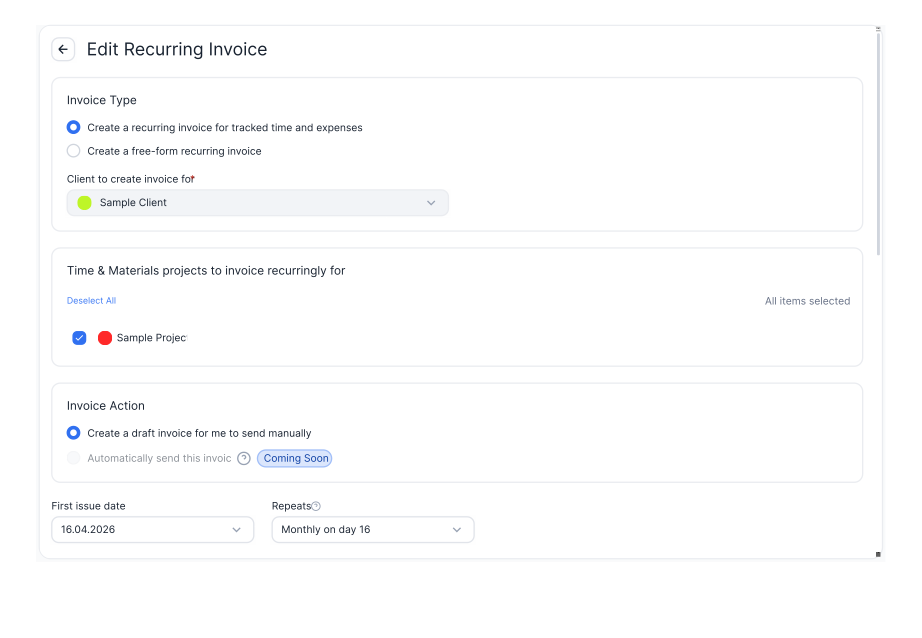
Note: The Client field cannot be changed.
If you no longer need the recurring invoice, you can delete it by clicking the Delete button in the top right, next to the Edit button. All invoices that have already been generated from this invoice template will remain unchanged.
Didn’t find what you were looking for?
If you didn't find what you were looking for, you can make a support request or email us to [email protected]. We'll be glad to help you personally.