Invoicing with Xero
Here, you will learn how to send invoices from TMetric to Xero directly, how to add taxes to invoices using Xero, and how invoice data is mapped.
How to integrate invoices to Xero
Xero is a cloud-based accounting software designed to handle everyday bookkeeping tasks. You can seamlessly connect TMetric with Xero to send invoices from TMetric to Xero.
Note: Xero invoice synchronization is available only in the Business plan. Only a workspace owner and an admin have permission to configure the integration.
To copy an invoice from TMetric to Xero
1. Go to the Integrations page and click the Connect button for Xero.
2. Select your Xero organization and click Allow access.
3. The Invoice Synchronization option is enabled by default.
Note: Before syncing invoices with Xero, disable the Invoice Synchronization option for QuickBooks if it is currently enabled.
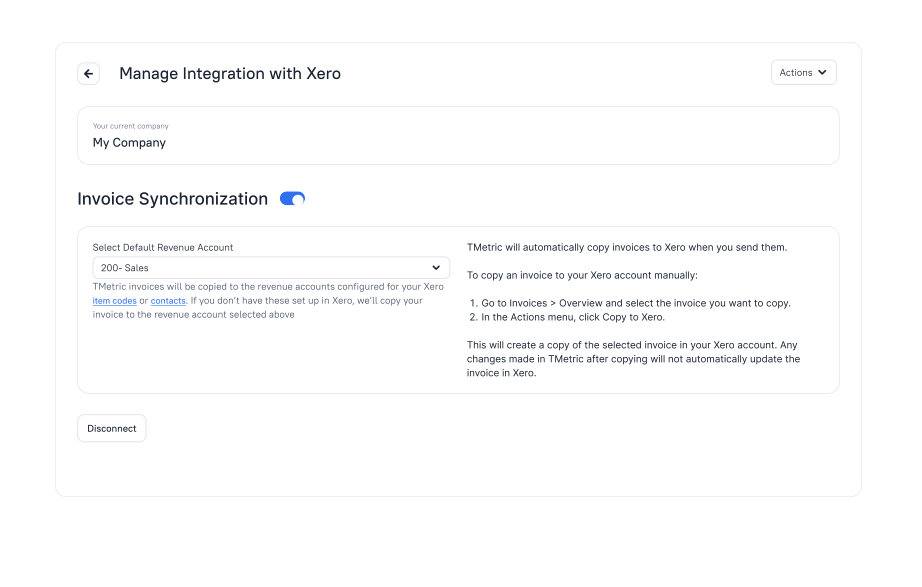
4. Go to the invoices page and open the invoice you want to copy to Xero.
5. Click the overflow menu icon, select Copy to Xero, and the invoice will appear in Xero.
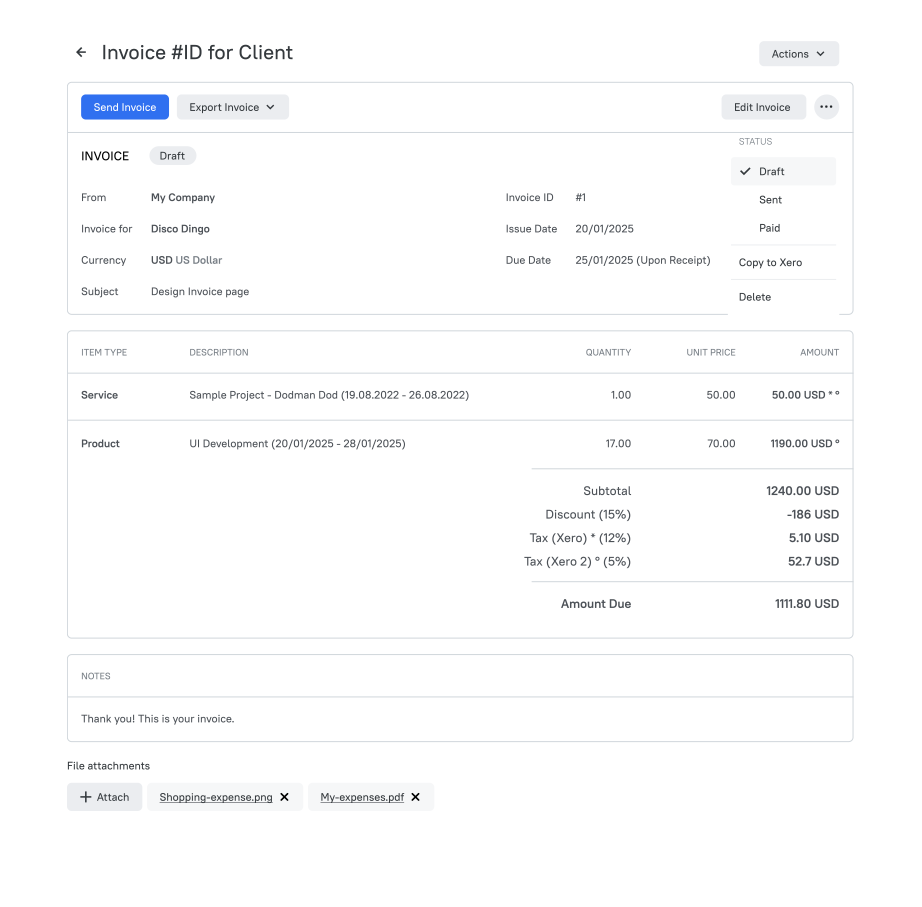
Note: If, when copying an invoice to Xero, the client does not exist there, the client will be created automatically, and the invoice currency will be assigned to that client.
6. The Copy to Xero menu item changes to Re-sync to Xero. Use this option to synchronize any changes made to the invoice with Xero.
7. Once the invoice has been successfully copied, a View in Xero link appears. Click the link to open and view the invoice in Xero.
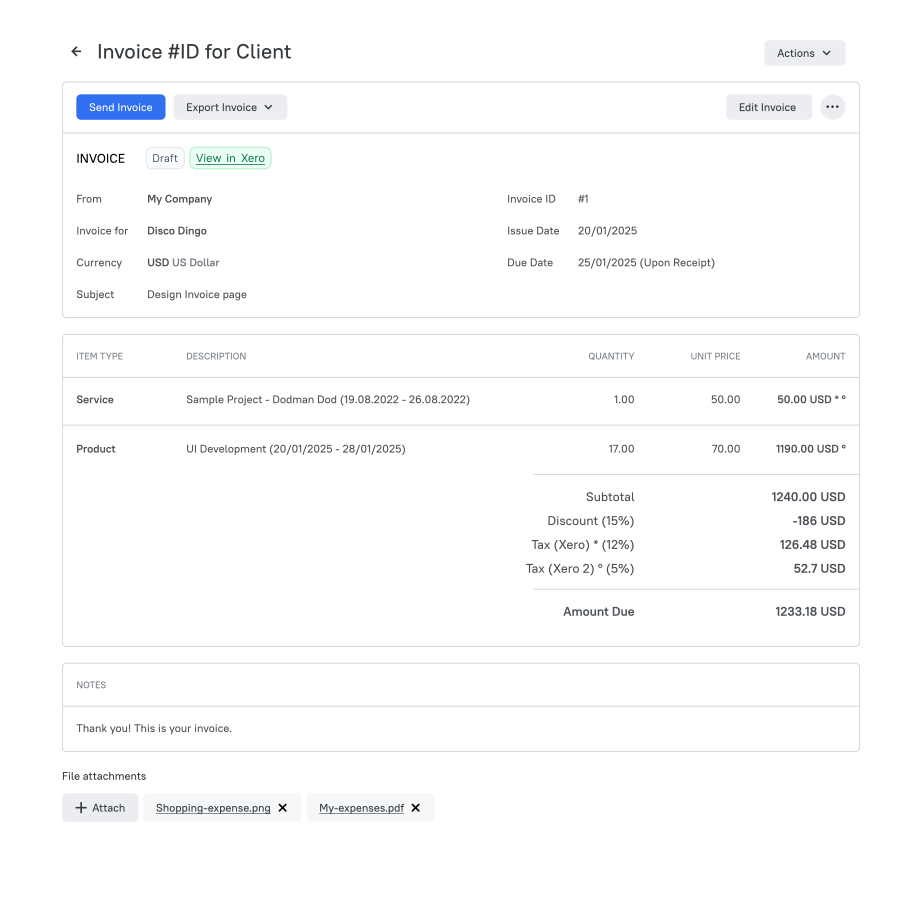
Note: If Invoice Synchronization is enabled, the invoice in TMetric will be automatically copied to Xero when you click the Send button.
Adding invoice taxes with Xero
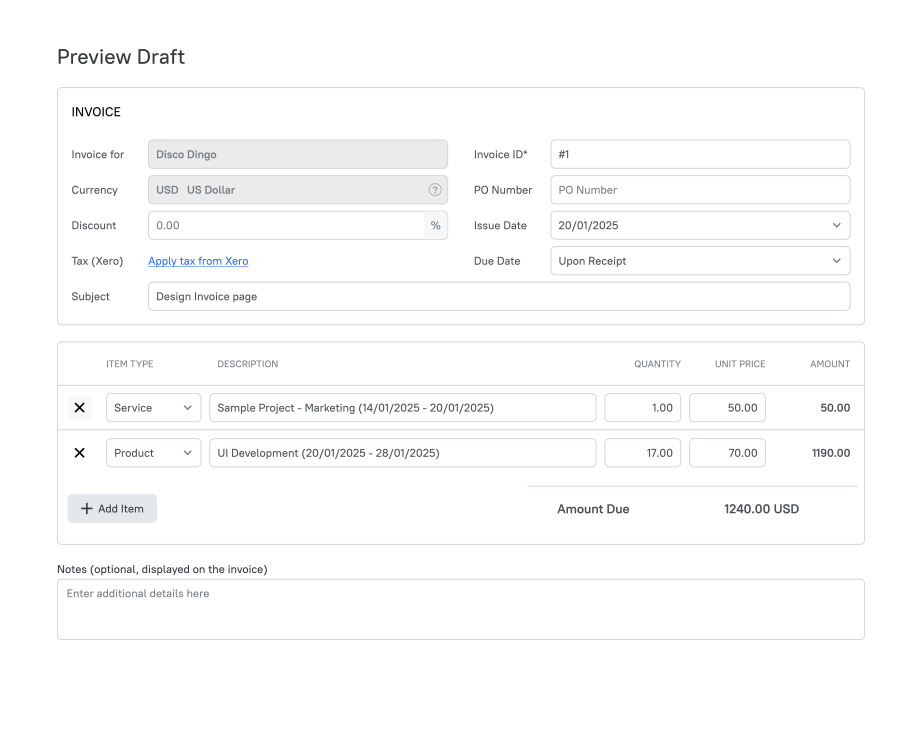
When the Xero integration is enabled, the Tax (Xero) field replaces the Tax field on the invoice. However, if taxes have been entered manually, the Tax (Xero) field is not shown. This field is optional.
To add a tax from Xero, click the Apply Tax from Xero link in the Tax (Xero) field and choose the appropriate tax from the drop-down menu.
Invoice data mapping
When invoices are synchronized, data from TMetric is mapped to Xero fields. The list below shows TMetric invoice fields (in bold) and their corresponding matches in Xero.
- Client is matched to Contact;
- Due Date is matched to Due Date;
- Issue date is matched to Issue date;
- Text ID is matched to Invoice number;
- Item Type is matched to Item;
- Description is matched to Description;
- Quantity is matched to Quantity;
- Unit Price is matched to Price;
- Discount is matched to Discount;
- Tax is matched to Tax rate;
- Subject is matched to Reference;
- PO Number is matched to Reference;
- Default Revenue Account is matched to Account;
- Currency Invoices is matched to Currency Invoices;
- Client Name is matched to Contact Name;
- Preferred currency is matched to Currency.
Didn’t find what you were looking for?
If you didn't find what you were looking for, you can make a support request or email us to [email protected]. We'll be glad to help you personally.