How to Enable Two-Factor Authentication
You can enhance login security for your TMetric account using two-factor authentication (2FA). This guide explains how to configure and use it either for the whole workspace or for a specific user.
Note: Only an owner or an admin can configure two-factor authentication for the entire workspace to make it mandatory for all members. This feature is available in the Business and Professional plans.
To set up 2FA for the entire workspace
1. Go to the Members page, click the gear icon to open the settings.
2. On the Members Settings page, enable the Require two-factor authentication (2FA) for this workspace option.
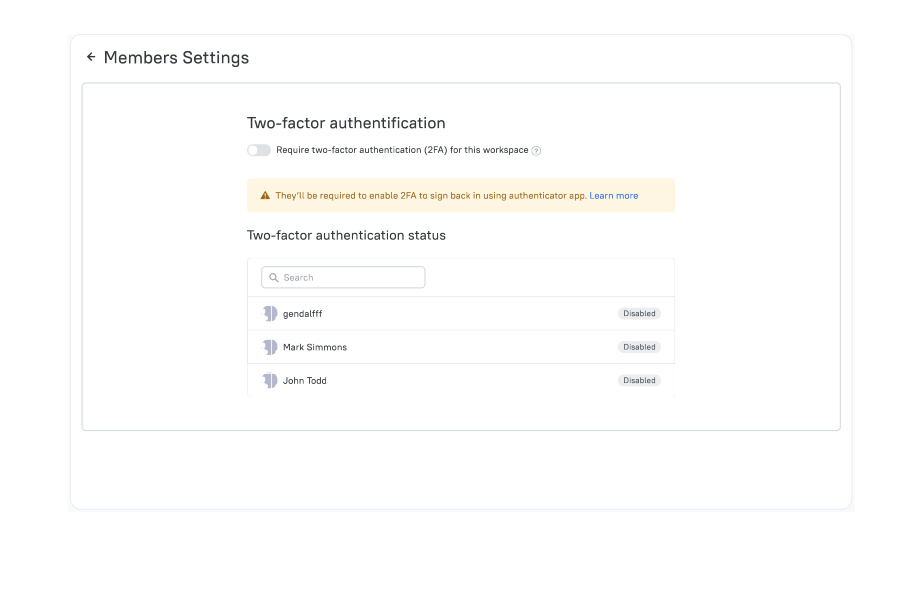
3. Regular members are now required to set up their personal 2FA before accessing the workspace. They will be notified about this by email.
Note: If the two-factor authentication option is enabled for the entire workspace, members cannot disable it on their side. In the two-factor authentication status section, an owner or admin can see which members have already enabled 2FA and which haven’t.
To configure personal 2FA for an individual member
1. Click your profile image in the top-right corner and select Profile Settings.
2. In the Login Security section, turn on the Authenticator App (TOTP) option.
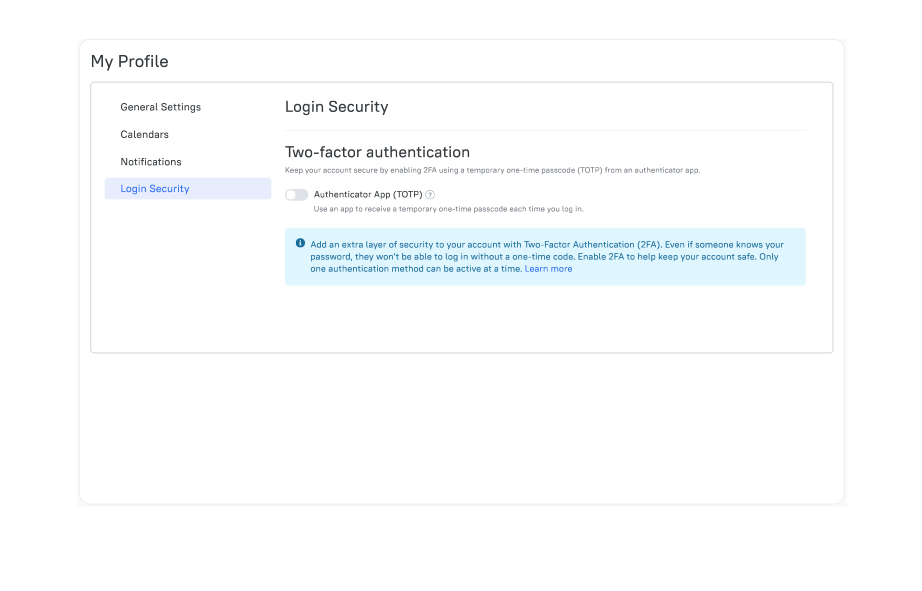
3. Scan the QR code using your authenticator app, then enter the code from the app into the dialog.
4. From now on, each time you log in, you’ll be prompted to enter the 2FA code from your authenticator app.
Note: Once members set up 2FA in one workspace, it applies to all other workspaces they are added to.
Didn’t find what you were looking for?
If you didn't find what you were looking for, you can make a support request or email us to [email protected]. We'll be glad to help you personally.